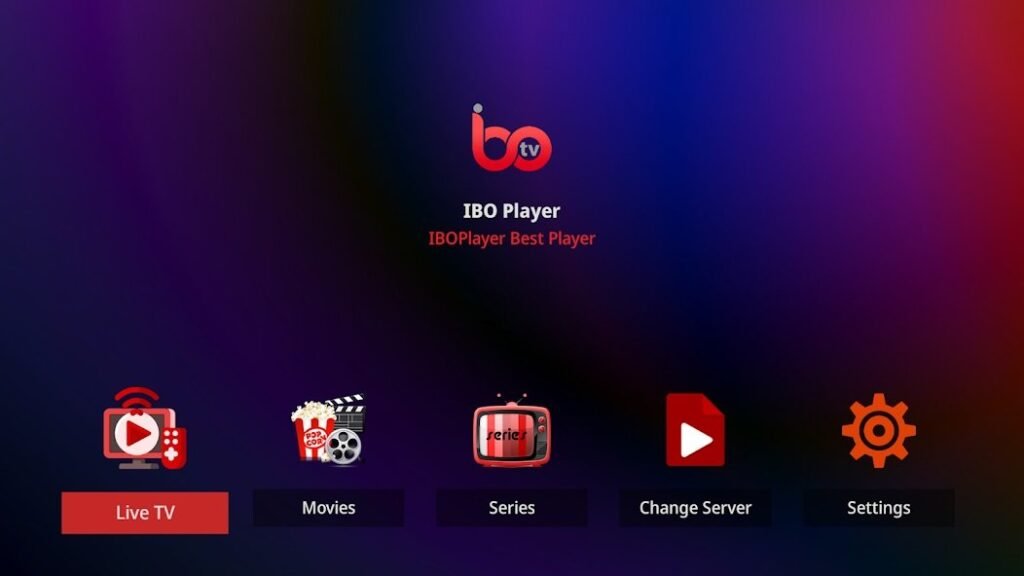
IBO Player is a powerful IPTV app that makes it easy for you to stream live TV, movies and series. One of the main features of the app is the ability to add playlists containing your favorite content. This step-by-step guide will show you how to upload playlists to IBO Player and get the most out of them.
1. requirements for uploading playlists
Before you start, make sure you have the following things ready:
- IBO Player App: Install the app on your device (Smart TV, smartphone or tablet).
- M3U playlist or Xtream codes: You can obtain this from your IPTV provider.
- Device ID and device key: You can find these in the app (required for activation).
Tip: The basic version of the app is free, but requires a one-off activation to unlock all functions.
2. find your device ID and your device key
- Open the IBO Player app on your device.
- Go to the menu "Device settings".
- Make a note of the Device ID and the Device keyrequired for activating and uploading playlists.
3. upload the playlist to the IBO Player website
The next step is to connect your playlist via the official IBO Player website.
- Visit the website:
- Go to www.iboplayer.com.
- Activate device:
- Enter the device ID and the device key to register your device.
- Upload playlist:
- Select the option "Add playlist".
- Upload your M3U playlist file or enter the M3U link or Xtream codes.
- Save playlist:
- Click on "Save"to synchronize the playlist with your device.
Note: Synchronization may take a few seconds. Then restart the app to display the playlist.
4. use of M3U links and Xtream codes
IBO Player supports two common formats for playlists:
M3U links
- These links contain a list of channels and content.
- Copy the M3U link from your provider and paste it on the IBO Player website.
Xtream codes
- You can add the playlist with your user name, password and server URL.
- This format often offers more stability and is easier to update.
Pro tip: Xtream codes are particularly useful if your provider regularly makes changes to the playlist.
5. display playlist in the app
Once you have successfully uploaded the playlist, you can display it in the app:
- Open the IBO Player app.
- Go to the menu "Playlists".
- Select the playlist you have added.
- Explore the content - live TV, movies, series and more.
Note: If your playlist is not displayed, check the internet connection or reload the app.
6. tips for organizing your playlists
IBO Player offers various functions to organize your content clearly:
- Mark favorites: Save your favorite channels for quick access.
- Create categories: Organize channels into groups such as sports, movies or news.
- Synchronize EPG: Use the electronic program guide to view current and future programs.
Tip: Keep your playlists up to date to ensure that all channels remain available.
7. troubleshooting problems with playlists
If your playlist does not work, you can try the following steps:
- Check the URL: Make sure that the M3U link or the Xtream codes have been entered correctly.
- Update playlist: Re-upload the playlist on the IBO Player website.
- Check Internet connection: A stable connection is essential for streaming.
- Update app: Check whether a new version of the app is available and install it.
Note: Contact your IPTV provider if the error persists, as the problem may be at the source.
Conclusion: Easy access to your favorite content
Adding playlists to IBO Player is a simple process that gives you access to a wide variety of content. Whether live TV, movies or series - with just a few clicks you have everything at your fingertips on your device.
Try IBO Player today and experience the ease of use and convenience that the app offers! 😊