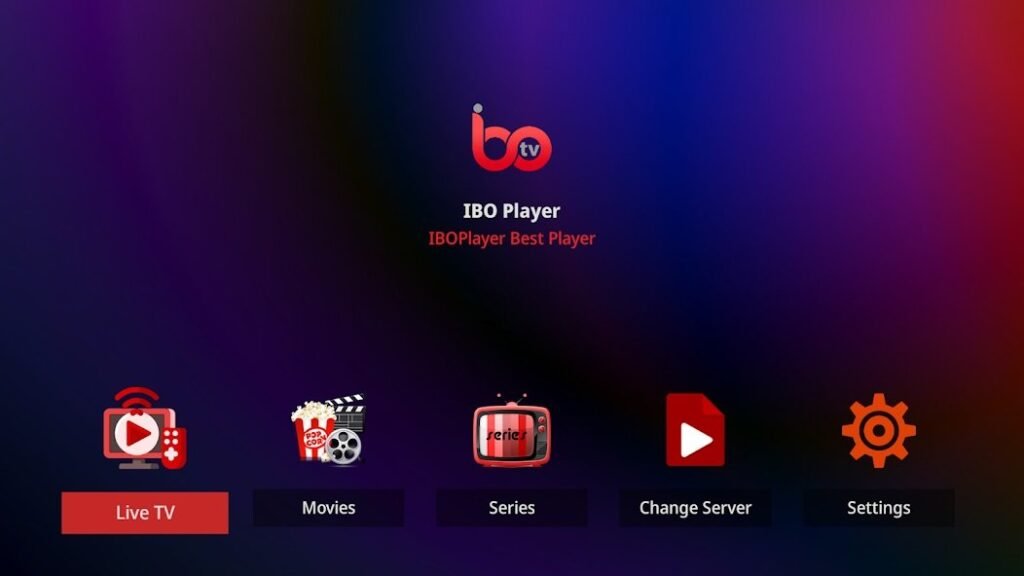
The combination IBO Player for Firestick is one of the most popular ways to watch IPTV on any TV. The Fire TV Stick simply connects via HDMI, and IBO Player offers a user-friendly interface with live TV, movies, TV shows, and a program guide. This guide provides step-by-step instructions on how to install the app, where to find your MAC address and device key, and how to add your playlist.
In short: Search for IBO Player in the Amazon Appstore or install the app using Downloader. When you launch the app for the first time, make a note of the MAC address and device key, use them to add your playlist on the provider's website, and then restart the app. The channels will then load automatically.
What You Need to Use IBO Player on the Fire Stick
- A Fire TV Stick (Lite, Standard, 4K, or 4K Max) or a Fire TV Cube.
- A stable Internet connection: 10 to 12 Mbit/s for Full HD, 25 Mbit/s for 4K.
- Your Playlist: an M3U link or Xtream login credentials for your IPTV subscription.
- A smartphone or a computer, to add the playlist via the website.
Step 1: Install IBO Player on the Fire Stick
About the Amazon Appstore
- On the home screen, go to Search.
- Type „IBO Player.“.
- Select the app and tap Download.
Via Downloader, if the app isn't displayed
If IBO Player isn't available in the App Store in your country, use the App Downloader:
- Install Downloader from the Amazon Appstore.
- Go to Settings, My Fire TV, Developer Options, and allow Downloader to install apps from unknown sources.
- Open Downloader and enter the download address from the official IBO Player website.
- Install the app, and then delete the installation file.
If the developer options aren't visible, go to Settings, My Fire TV, About, and tap the device name seven times. Downloader is also available for Android TV at Google Play.
Step 2: Write down the MAC address and device key
When you launch IBO Player for the first time, it displays two pieces of information: the device's MAC address and a device key. Write both down carefully or take a photo of the screen with your cell phone. You'll use this information in the next step to link your playlist to this specific device.
Step 3: Add a playlist
- Open the official IBO Player website on your smartphone or computer.
- Log in using your MAC address and device key.
- Select "Playlist Management" and add your M3U link or Xtream data.
- Save your changes and restart IBO Player on the Fire Stick.
You can find detailed instructions on this in our article How to Upload Playlists to Ibo Player.
Step 4: Testing Phase and Activation
IBO Player usually offers a free trial period. After that, a one-time activation per device is required, which is done through the website. Activation is tied to the MAC address: If you switch Fire Sticks, you'll need to reactivate it. For more information, see the Configuration and Activation Guide.
The Best Settings for IBO Player on Firestick
- Use 5-GHz Wi-Fi, if the USB flash drive is in the same room as the router.
- Ethernet Adapter for Fire TV Use this when the Wi-Fi signal is weak.
- Restart the flash drive once a week, by briefly unplugging it.
- Clear the app cache Go to Settings > Apps if the app starts running slowly.
- Add the IBO Player to the Home Screen, so you can open it with a single click.
Common Problems with IBO Player on the Fire Stick
| Problem | Probable cause | Solution |
|---|---|---|
| App Not Available in the App Store | Regional Availability | Installation via the Downloader |
| No stations after adding them | App did not restart | Close the app and reopen it |
| Playlist is not loaded | Error in the M3U link | Enter the link in its entirety, without spaces |
| The image is choppy | Weak Wi-Fi | 5 GHz or Ethernet adapter |
| TV Guide is empty | EPG not loaded | Update the EPG in Settings |
You can find more solutions in our article Common problems with IBO Player and their solutions.
Conclusion
The IBO Player Firestick can be set up in just a few minutes: Install the app, note down the MAC address and device key, add the playlist on the website, and restart the app. With a stable connection, the Fire TV Stick delivers smooth video playback on any TV.
Everything about IBO Player You can find this on our homepage. To see which other devices are supported, go to Devices that are compatible with IBO Player.
Frequently Asked Questions
Is the IBO Player available in the Amazon Appstore?
In many countries, yes. If the app doesn't appear in your store, install it using a downloader with the download link from the official website.
Where can I find the MAC address and device key?
Both will appear on the screen the first time you launch IBO Player. You can also find them in the app's settings.
Why don't I see any stations after adding the playlist?
In most cases, the app was not restarted. Close IBO Player completely and open it again.
Do I have to activate IBO Player for every Fire Stick?
Yes, activation is tied to the device's MAC address. Each Firestick requires its own activation.
How do I prevent stuttering on the Fire Stick?
If you're using 5 GHz Wi-Fi or an Ethernet adapter, restart the Stick and the router, and clear the app's cache.
Can I use the same playlist on multiple devices?
Yes, if your subscription allows for multiple simultaneous connections. Each device requires its own IBO Player activation.